What Makes Google Veo 3.1 Stand Out in 2026
You get a new way to make AI videos with google veo 3.1 on karavideo.ai. This tool is special because it makes 1080p videos for phones, has built-in sound
You get a new way to make AI videos with google veo 3.1 on karavideo.ai. This tool is special because it makes 1080p videos for phones, has built-in sound, and follows your prompts well. You can keep characters and scenes the same by using up to three reference images. Google veo 3.1 helps you turn short clips into longer stories. You can also control every creative part. The table below shows why google veo 3.1 is the best in 2026:
Google veo 3.1 helps creators and businesses make real-looking, movie-like videos faster than before.
Key Takeaways
- Google Veo 3.1 makes clear 1080p videos with sound. Your videos look good and sound nice.
- You can use three reference images. This helps keep characters and scenes the same in your video.
- The Scene Extension feature lets you make short clips longer. You can tell bigger stories without losing your story’s flow.
- Veo 3.1 makes audio that matches the video. The sound fits the video well. This saves you time editing.
- The platform is easy to use. Anyone can make videos fast. You do not need editing skills.
Google Veo 3.1 Video Generation
1080p Quality and Realism
You can make sharp videos with google veo 3.1 on karavideo.ai. This tool lets you create 1080p videos that look very clear. Some other AI video tools in 2026 only give you 1080p, but sometimes veo can do 4K in special modes. You get voices, music, and sounds that match your video from just one text prompt. Your videos will sound real and look real too.
Note: Experts say veo is great at making lips move with the words and showing real movement. The pictures look smooth, and the sound fits the action. Some people think the price is high, and there are small problems, but most say the quality is very good.
Here is a quick comparison:
You can count on veo to make videos that look and sound like a pro made them.
Multi-Modal Prompts and Reference Images
Veo gives you more ways to control your videos. You can upload up to three reference images. This helps you keep faces and characters the same in every scene. If you want your main character to look the same, just add their photo as a reference. Veo uses these images to help keep the style and look steady.
Here is how these features help you:
- You get smoother changes when you add new things.
- Your videos keep the same style from start to end.
- Veo uses your images to make the video more correct.
You will notice your videos look better and more finished when you use more reference images.
Scene Extension and Ingredients to Video
Veo gives you new tools for making videos. With Scene Extension, you can take a short clip and make it longer. Veo keeps the action going, so your story does not stop. You do not have to worry about scenes that do not fit together.
The Ingredients to Video tool lets you mix several images into one scene. Veo adds sound, so your video feels complete. You can add or erase things in the middle of a scene, which helps you edit better.
People say these tools help them be more creative. You can change videos by adding or removing things and making clips longer. The Flow Extend feature helps you make longer clips that do not break. Veo lets you pick how your video looks and feels. You do not just tell it what you want—you help shape it.
Tip: Use Scene Extension to make your stories more fun. Try Ingredients to Video if you want full control over your video’s look.
With veo, you can turn simple ideas into great videos that stand out.
Veo Audio and Narrative Control
Native Audio Generation
Now you can make videos with sound already in them. Before, you had to add sound after making your video. Veo 3.1 puts sound, talking, and effects right into your video as you make it. This saves time and makes your stories feel more real. The system uses special 3D convolution layers and a U-Net architecture. These help veo know what is happening in the video and the sound at the same time.
Synchronized Sound and Dialogue
Veo 3.1 helps match sound and talking with what you see. Lips move with the words and the sound fits the action. The system is very good at this. It gets 87% right in English and over 70% in other big languages.
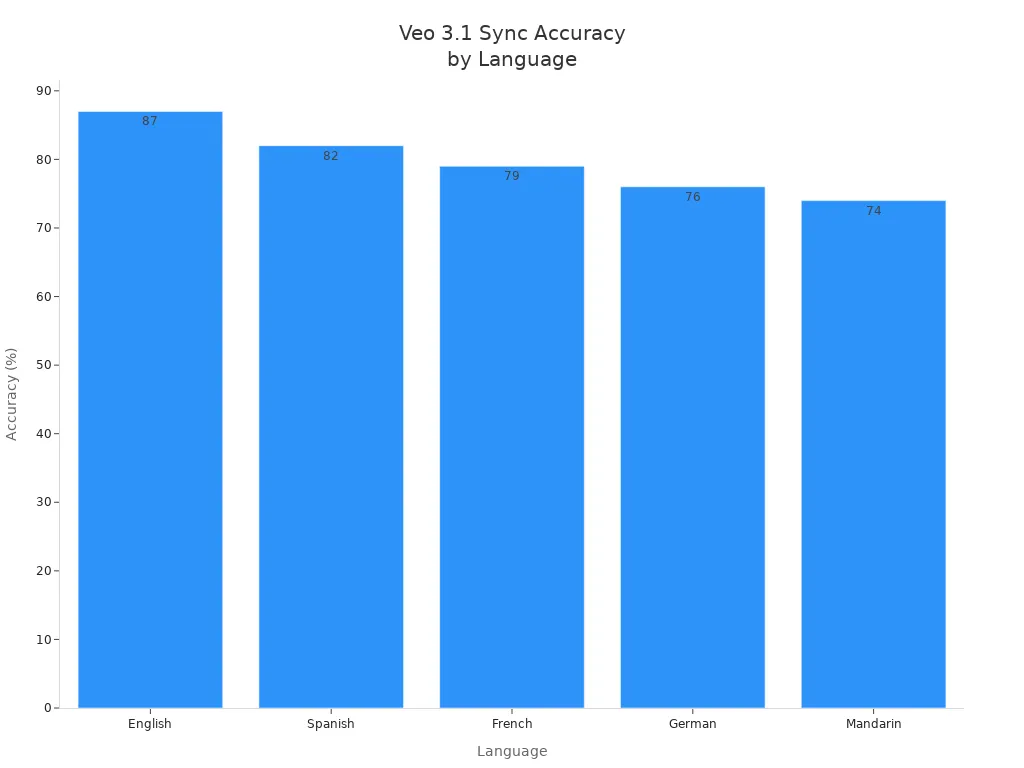
You will see that lips and words go together. The sound matches what is happening. Veo makes fewer mistakes, so your story stays smooth. Here are some good things:
- Speech and movement stay together.
- The system knows how to match feelings and actions.
- Fewer sound mistakes make your video sound clear.
You can finish your videos faster because you do not need to fix the sound later.
Flexible Storytelling Tools
Veo gives you more ways to tell your story. You can pick where your video starts and ends with dual keyframe control. You can choose how long each part is, from 4 to 8 seconds. The system lets you make videos for phones or computers. You can add or take away things in a scene, and veo will fix the light and shadows for you.
These tools help you make stories that look and feel real. Veo lets you share your ideas with less work and more control.
Integration and Performance
karavideo.ai Ecosystem Integration
Karavideo.ai lets you use all your creative tools together. You can edit, share, and manage projects in one place. There is no need to jump between different apps. You upload your ideas and pick what you want. The system does the rest for you. MindStudio is part of this group of tools. It helps you do tasks automatically. You can work on many projects at once. If you want to make more than one video, you can set up special AI agents. These agents help make prompts and change settings for each project. This saves time and keeps your work neat.
Tip: Try the project dashboard to see your progress. You can also share drafts with your team. This makes working together easier and helps you finish faster.
Fast Rendering and Cloud Scalability
Rendering speed is important when you make good videos. Google Veo 3.1 is faster than other tools in tests. It gets better scores in things like fluid dynamics and motion accuracy. You can see how it does in the table below:
The cloud system behind Veo 3.1 gives you more power. You can do many things at the same time. The platform works with different video lengths and screen sizes. You do not have to worry about slowdowns on big projects. The system lets you do more work without extra effort.
- MindStudio helps you make videos so you can handle many projects at once.
- You can set up special agents to make prompts and change settings.
- The platform works with different times and formats for each project.
You get quick results and steady performance, even for big projects.
User Experience and Security
Intuitive Interface and Accessibility
You can start making videos with veo right away. The platform is good for beginners and experts. You do not need to know how to edit videos. You can make videos from text or use templates. You do not have to log in or sign up. You get access right away. After you type your prompt, your video shows up in seconds. You can change the style, how long it is, and the quality. The platform lets you pick from many video types. You choose what works best for you. You can download your video as soon as it is done. You use everything in your browser, so you do not need to install anything. You get real-time previews and smart tips to help you edit.
- Make videos from text or templates without knowing how to edit.
- Use the platform without logging in or signing up.
- Get results fast and see your video in seconds.
- Change style, length, and quality for each video.
- Pick from different video types.
- Download your finished video right away.
- Use it in your browser for easy access.
- Real-time previews and smart tips make editing simple.
The interface is easy for you to use. You control your video ideas without getting confused.
Content Moderation and Data Protection
Google Veo 3.1 has strong rules against NSFW content. It does not allow sexual material, too much violence, or hate speech. The system uses two filters. One filter checks your prompt for bad words. The other filter looks at each video frame as you make it.
You make videos in a safe place. The platform checks your prompts and videos while you work. It blocks bad words and reviews every frame to stop unsafe content. You know your data is safe and private. The platform uses smart tools to keep your work protected. You can focus on your story and not worry about safety.
You can make great videos with Google Veo 3.1 on karavideo.ai. It gives you sound, creative tools, and keeps your work safe. Many people use veo for social media, marketing, and making apps. The table below shows how you can use this tool:
Try Google Veo 3.1 on karavideo.ai to turn your ideas into real videos.
FAQ
What makes Google Veo 3.1 different from other AI video tools?
You get 1080p video, native audio, and strong prompt control. Veo 3.1 lets you use reference images and creative tools. You can make longer, more consistent videos with less effort.
Can I use Google Veo 3.1 without video editing skills?
Yes. You do not need to know how to edit videos. You type your idea or use templates. The platform guides you with smart tips and real-time previews.
How does Veo 3.1 keep my data safe?
Veo 3.1 checks your prompts and videos for safety. The system blocks unsafe content and protects your privacy. You can focus on your story without worry.
What types of projects can I create with karavideo.ai and Veo 3.1?
You can make social media clips, ads, and app videos. The platform works for marketing, education, and entertainment. You choose the style and length for each project.