What Is Ray3 Modify and How Does It Work
Many creators pick Ray3 Modify because it works well with ai video platforms. It gives you results that look very close to real life
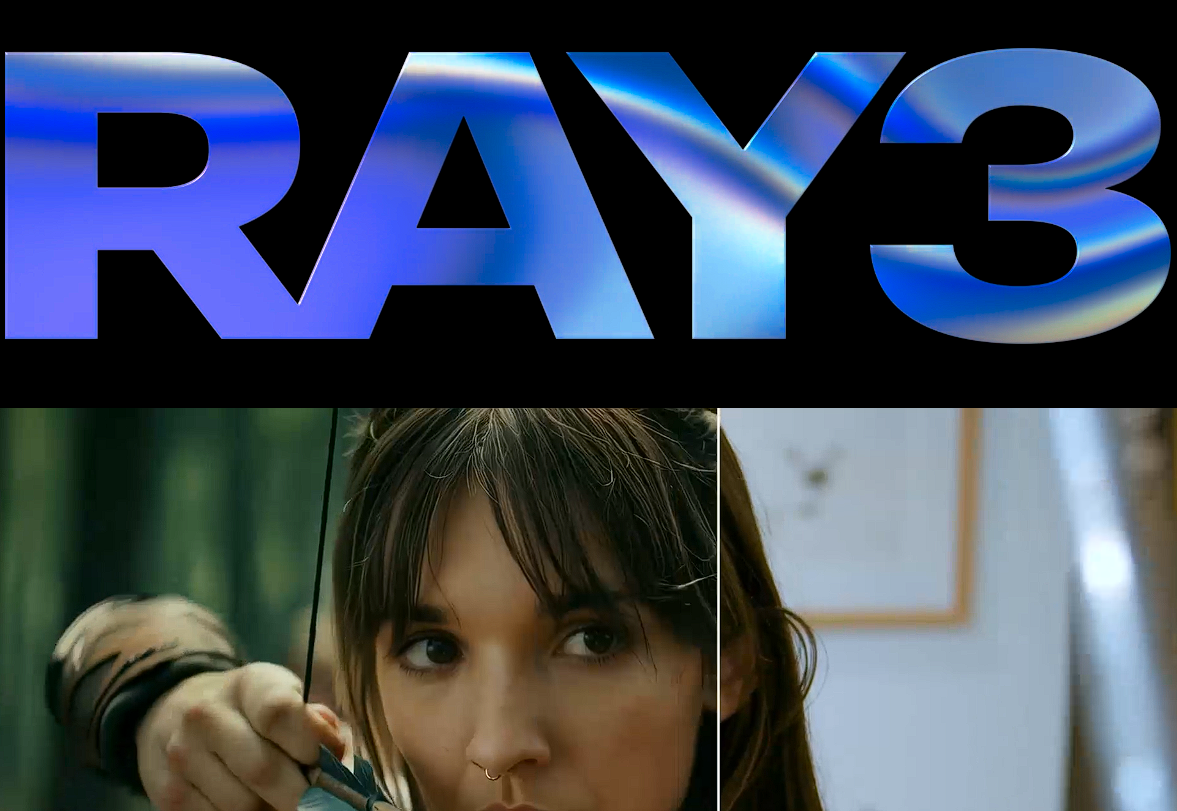
Ray3 Modify is a video editing tool that uses AI. You use Ray3 Modify on the karavideo.ai website. This website works with Luma technology. Artificial intelligence helps you edit videos. It keeps people in the video looking real and clear. Many creators pick Ray3 Modify because it works well with ai video platforms. It gives you results that look very close to real life.
Key Takeaways
Ray3 Modify is an AI video editing tool. It helps make videos look real. It keeps the natural moves of characters.
You can use Ray3 Modify on the karavideo.ai website. You do not need to change tools. This makes editing easy and smooth.
The tool has Draft Mode. This lets you try ideas fast. You can test before finishing your video.
Ray3 Modify lets you use keyframe editing. You can control important parts of your video.
Character reference tools help keep characters looking the same. This works for different clips. It makes your video look better.
The platform works for beginners and experts. It makes hard video editing easy for everyone.
Ray3 Modify shows real-time previews of your edits. You can change things quickly. This helps you make your project better.
The tool works in many fields. You can use it for movies, ads, and games. It helps make great content.
Ray3 Modify Overview
What Is Ray3 Modify
Ray3 Modify is a strong tool for editing videos. It uses luma ai ray3 modify technology. This technology brings smart ai features to your videos. Ray3 Modify started with the luma platform. Now, it works with karavideo.ai. You can make videos that look real. People in your videos keep their true actions. The tool uses ai to help you change scenes and characters. You can also change places in your video. Everything still looks natural and real. The system helps you work with generative video projects. You can try new ideas fast and see what works.
Role in karavideo.ai Platform
Ray3 Modify is very important on the karavideo.ai website. You use it right on the site to edit videos. It helps you make great generative video changes. The platform mixes luma ai ray3 modify technology with easy tools. You start with your own video. You pick what you want to change. Then, you use ai features to change your video. The system helps your video keep its style and flow. Even big changes look smooth. You can use Ray3 Modify to think of ideas fast. You can plan your story and fix your project before finishing. The platform lets anyone do advanced video editing. Beginners and experts can use it.
Key Benefits
Ray3 Modify gives you many good things for editing videos. The tool helps you be creative and organize your ideas. You can use Draft Mode to make ideas quickly. The system makes high-quality videos with HDR. You can use Artboard and Storyboard to plan your video. The ai lets you change videos by talking or typing. This makes editing easy and quick. You can use reference-based generation to keep your style the same in all clips.
Tip: Ray3 Modify is like a helper for your video ideas. You can plan, test, and fix your videos all in one place.
Here is a table that shows what makes Ray3 Modify special compared to other video editors:
Feature | Description |
Scene-aware transformations | You can change many layers in your video. The changes look natural and the story stays clear. |
Keyframe control | You control how scenes move from start to end. Your video keeps its space and order. |
Character reference continuity | You keep your characters looking the same in every clip. This makes edits smooth. |
Performance authenticity | You keep the real moves and timing of people. Even if you change how things look, actions stay true. |
Ray3 Modify helps you work faster with generative videos. The system lets you turn ideas into clear pictures before you finish. You get high-quality tools that make video editing simple for everyone.
How Ray3 Modify Works
Ray3 Modify helps you change videos with ai. You follow easy steps to start and finish your project. The system uses smart ai to keep your video looking real. You get tools that make editing simple.
Workflow Steps
Access and Setup
First, open Ray3 Modify on karavideo.ai. You see a button to upload your video. The video can be up to ten seconds long. You also upload a picture of your character. This helps ai know who or what you want to change.
Video Selection
Next, pick the video you want to edit. Choose your best clip and add your character picture. The platform shows you important frames from your video. You pick which frames you want to change. This helps you work on the most important parts.
Editing Process
Now, use modify mode to start editing. Click a keyframe card to open the editor. Check the ‘use character’ box to keep your character the same. Write what you want to change in your video. You can change the background, style, or how your character looks. Adjust modify strength to control how much ai changes your video. Submit your changes and let ai work. The system uses ai to keep real actions and timing. You can do this for each keyframe you want to change.
Exporting Results
When you finish, export your new video. The platform lets you save your video with all changes. You get a high-quality video that looks real. You can share your video or use it for your next project.
Tip: Try Draft Mode to test ideas fast before you export your final video.
Tools and Technology
Ray3 Modify uses smart ai to change videos. The system mixes real actor moves with generative video. Ai looks at your video and character picture to help with changes. You can change places, styles, and movie parts but keep real actions. The technology helps keep things smooth and emotions clear. You get tools to control every part of your video. The platform uses a mix of ai to make your project look good.
Technology Feature | What It Does |
Hybrid AI workflow | Mixes real actor footage with ai modifications |
Character reference | Keeps your character’s look and actions the same |
Keyframe editor | Lets you modify video at important moments |
Modify strength control | Adjusts how much the ai changes your video |
User Experience
Ray3 Modify gives you an easy way to change videos. The platform helps keep real moves and timing in your video. You use tools to change your character’s look. You can change clothes and keep your character’s face. The system lets you set start and end frames for each scene. This makes scenes change smoothly. You see your changes right away and can fix them. Ai helps keep your story clear and your video real.
You keep real human actions while you change your video.
You use tools to change your character and keep details.
You get smooth scene changes by setting start and end frames.
Note: Ray3 Modify helps you change videos and keeps everything looking real.
High-Fidelity Video Editing Features
Performance Preservation
You want your videos to look real and keep true actions. Ray3 Modify helps you do this with high-quality editing. The system uses ai to keep the real motion and timing in every frame. It also keeps the feelings and expressions of people. When you edit, you do not lose the natural flow. Your actors still look and act like themselves. This helps your story feel real and keeps people watching.
Ray3 Modify uses smart thinking to understand each scene. The model looks at how parts fit together and makes the story better. Light and details stay the same, so people look clear. You can use text, images, or short videos to make your story. This lets you create strong and interesting videos in many ways.
Feature | Description |
Reasoning | The model thinks about scenes to make your story clear. |
Consistency | Keeps light and details the same for real human actions. |
Input Flexibility | Lets you use text, images, or video to tell your story. |
Storytelling | Uses ai to show real actions and feelings in your videos. |
Tip: Use performance preservation to keep your actors’ real moves and feelings, even after big changes.
Character Reference Tools
You can use character reference tools to keep your characters the same. Ray3 Modify lets you upload a picture of your character. This tool lets you change how your character looks but keeps their real actions. You keep the same moves, timing, and where they look. Your edits stay true to the original video.
You can also pick where a scene starts and ends. This helps you make smooth changes and keep your story going. The system locks your character’s look, clothes, and style for the whole shot. You guide the scene with a mix of ai, which gives you more control.
Feature | Benefit |
Character Reference Image | Change how your character looks but keep real actions. |
Performance Preservation | Keep moves, timing, and feelings for realness. |
Start and End Frame Control | Make smooth changes and keep your story clear. |
Custom Character Identity | Lock your character’s look and style for the whole shot. |
Hybrid-AI Workflow | Guide scenes with more control and planning. |
Note: Character reference tools help you keep your story and characters the same, even when you try new things.
Advanced Editing Options
Ray3 Modify gives you advanced editing options to try new ideas. You can use ai to change backgrounds, styles, or how strong a scene feels. The system lets you pick how much you want to change. This helps you keep a good balance between new ideas and real actions.
You can use performance-focused editing to keep what matters most. This means you keep the real moves and feelings of your actors. The platform lets you try new looks and scenes but always keeps the main actions. You get tools that make editing fast, easy, and fun.
Change modify strength to control how much ai changes your video.
Use keyframe editing to work on important moments.
Try new styles while keeping real feelings and faces.
Try using advanced options to find new ideas without losing the heart of your story.
Integration with karavideo.ai
You use ray3 modify directly on the karavideo.ai platform. This integration gives you a smooth experience from start to finish. You do not need to switch between different tools. You upload your video, select your character, and start editing—all in one place.
The platform uses ai to help you make changes quickly. You see your edits in real time. You can adjust your video and check the results right away. This saves you time and helps you focus on your creative ideas.
Here is how the integration works for you:
Easy AccessYou log in to karavideo.ai. You find ray3 modify in the main menu. You start your project with a few clicks.
Simple UploadsYou upload your video and character image. The system guides you through each step.
Smart EditingYou use ai-powered tools to change scenes, backgrounds, and character looks. You control how much you want to change.
Instant PreviewsYou see your edits right away. You can fix mistakes before you finish your video.
Fast ExportYou export your final video in high quality. You share it or use it for your next project.
Tip: You can use Draft Mode to test ideas before you make your final video. This helps you try new things without risk.
The table below shows how the integration helps you at each step:
Step | What You Get | How It Helps You |
Access | One login for all tools | Saves time |
Upload | Simple video and image upload | No confusion |
Editing | ai-powered features | More creative options |
Preview | Real-time feedback | Fix problems fast |
Export | High-quality video output | Ready to share or use |
You do not need special skills to use ray3 modify on karavideo.ai. The platform gives you clear instructions. You follow each step and see your progress. The ai helps you keep your video looking real and smooth.
You can work alone or with a team. The platform supports group projects. You share ideas and edit together. This makes video creation fun and easy.
Note: The integration between ray3 modify and karavideo.ai lets you focus on your story. You do not worry about technical problems. You use ai to bring your ideas to life.
Luma AI Ray3 Modify Technology
Video-to-Video Capabilities
You can use Luma’s smart AI to change videos. This is called video-to-video transformation. The system looks at your video and learns every part. It studies how things move, the light, and the style. You pick a character and guide how the video changes. The AI keeps the story easy to follow and actions smooth. You control each keyframe and choose where changes begin and end. This helps you make transitions that look real.
The technology lets you do layered, scene-aware changes. You can change backgrounds, costumes, or the mood of a scene. The AI keeps everything fitting together. You can redesign scenes or swap things fast. This gives you more creative choices when editing videos.
Real Actor Integration
Ray3 modify uses real actor data to make editing better. The AI watches small face movements and strong feelings. When you change a character’s look, the system keeps the real acting. You do not lose the tiny details that make actors seem real. The technology lets you keep motion and feelings, even if you change the style.
Studios use this to keep their stories true. You can change how actors look but keep their real actions. This is good for creative projects where you want new ideas but keep the real feeling. The AI helps you lock the look, likeness, and costume of your character for the whole clip.
Note: You can trust the system to keep your actors’ real feelings and actions, even after big changes.
Creative Transformations
Luma’s AI model gives you many ways to be creative. You can control every part of your video with keyframe editing. Start and end frame control helps you make smooth changes. The system lets you retouch and swap things fast. You can redesign a scene or change the style in seconds.
Here are some creative options you get:
Precise keyframe-level video control
Start & End Frame control for smooth transitions
Layered, scene-aware transformations
Improved narrative coherence and performance authenticity
Fast retouching and scene redesign
Locking character identity and costume for the whole clip
You can use these tools to tell better stories. The AI helps you keep your video real and your ideas fresh. You do not need to worry about losing the true acting of your actors. The system supports your creative vision from start to finish.
Tip: Try different transformation tools to see how your story changes. You can always keep the main actions and feelings in your video.
Practical Applications
Use Cases
Ray3 Modify helps you with many creative jobs. You can edit live-action videos with great detail. The tool gives you keyframe controls to change scenes and characters. You use character reference controls to keep actors looking the same. Many creators use Ray3 Modify to plan, test, and finish projects. You can try new ideas and see results fast.
Here is a table that shows common ways to use Ray3 Modify:
Use Case | Description |
Video Editing | Edit and change videos with keyframe controls. |
Character Reference Controls | Use character reference controls for better video quality. |
Ray3 Modify helps with storyboarding, scene redesign, and keeping real actions. The tool works for short clips and long live-action videos. You can make drafts, test new looks, and keep your story easy to follow. Many teams use Ray3 Modify to work faster and make better videos.
Industry Examples
Ray3 Modify is used in many industries. Film studios use it to make live-action videos ready for production. Agencies like HUMAIN Create and Monks keep characters the same and scenes smooth. Advertising companies, like Dentsu Digital, use Ray3 Modify for ai-powered ads in Japan. Game developers add Ray3 Modify to their creative tools to make video production easier.
Here are some examples:
Film: Big agencies use Ray3 Modify for high-quality videos. Scenes look real and characters stay the same.
Advertising: Companies use Ray3 Modify for quick, ai-made ads. You see results in real campaigns.
Gaming: Creative agencies use Ray3 Modify in their tools. You get better videos for game trailers and story scenes.
Ray3 Modify works in many fields. The tool helps you get professional results with less work.
Community Stories
Many creators talk about their wins with Ray3 Modify. You find stories from students, filmmakers, and designers. One student used Ray3 Modify for a school project. The ai kept the actors’ real moves and faces. A filmmaker used Ray3 Modify to change a scene in a short film. The tool made the change smooth and kept the story clear.
Designers use Ray3 Modify to test new styles for video ads. You see changes right away and fix them before sharing. Teams work together on group projects and use Ray3 Modify to plan and edit scenes. You get feedback fast and make your video better with each step.
Tip: Try Ray3 Modify for your next project. You can find new ways to use it and see how ai helps you make better live-action videos.
Limitations and Requirements
Technical Needs
You need a computer with a stable internet connection to use Ray3 Modify. The platform works best on modern web browsers like Chrome or Edge. You should have enough memory and storage space for video files. If you want to edit high-quality videos, your device should have a good graphics card. Ray3 Modify uses ai to process your videos, so faster hardware helps you get results quickly.
You upload your video and character image to the karavideo.ai platform. The system guides you through each step. You do not need special software. You only need access to the website and your video files. If you work with large projects, you may want to use a computer with more power.
Tip: Use a computer with at least 8GB of RAM for smoother editing. This helps you avoid slowdowns when working with bigger files.
Supported Formats
Ray3 Modify supports common video formats. You can upload MP4 files, which most cameras and phones use. The platform also accepts standard image formats like JPG and PNG for character references. You should keep your video clips short, usually up to ten seconds. This helps the ai process your edits faster and keeps your workflow simple.
Here is a table showing supported formats:
File Type | Format | Notes |
Video | MP4 | Best for short clips |
Image | JPG, PNG | Use for character reference |
You do not need to convert your files before uploading. The system works with these formats right away. If you use other formats, you may need to change them to MP4, JPG, or PNG before starting your project.
Potential Challenges
You may face some challenges when using Ray3 Modify. Sometimes, keeping your character’s look the same in every frame can be hard. If your reference image does not show the full face, the ai may guess what is missing. This can lead to small changes in how your character looks.
'With generative video, consistency is still one of the hardest problems to solve, especially when your reference is limited. In this test, my Starting Frame only captured a side profile, so the model had to “guess” the rest of his face. That’s where you really see the difference between a tool that can preserve identity and one that drifts into a lookalike.'
You should pick clear reference images that show your character’s face and style. This helps the ai keep your edits true to the original. If you work with group projects, make sure everyone uses the same settings and images. This keeps your video consistent.
You may also need to test different settings to get the best results. Try using Draft Mode to see changes before you finish your video. This helps you fix problems early and make your project look better.
Note: Ray3 Modify gives you tools to solve most challenges. You can use keyframe controls and reference images to keep your video smooth and real.
Getting Started
Access on karavideo.ai
You can use Ray3 Modify on karavideo.ai. The steps are easy. First, make an account on the website. Log in and find Ray3 Modify on the dashboard. Upload your video and a picture of your character. The platform shows you what to do next. You learn each feature step by step. You do not need special software or expert skills. The interface is simple and helps you use the editing tools. You also get help with ai features. If you want to start your first project, follow the instructions on the screen. Try Draft Mode to test ideas before you finish your video.
Tip: Look around the dashboard to see all the choices. You can watch tutorials that teach you how to use Ray3 Modify for different videos.
Pricing and Availability
Ray3 Modify has different plans for users. You can pick a free plan or pay for more features. The table below shows the main choices:
Plan Name | Monthly Price | Annual Price (20% off) | Monthly Credits | Features |
Web Free Plan | N/A | N/A | Limited | 720p image generations, Draft resolution, Lower priority, Non-commercial, Watermarks |
Web Lite Plan | $9.99 | $7.99 | 3200 | Full Ray3 access, 4k up-res, High priority, Non-commercial, Watermarks |
Web Plus Plan | $29.99 | $23.99 | 10,000 | Full Ray3 access, 4k up-res & HDR, High priority, Commercial, No watermarks |
Web Unlimited Plan | $94.99 | $75.99 | 10,000 | Full Ray3 access, 4k up-res & HDR, High priority, Commercial, No watermarks |
Web Enterprise Plan | Contact us | N/A | 20,000 | Full Ray3 access, 4k up-res & HDR, Highest priority, Commercial, No watermarks |
Modify Video Pricing | N/A | N/A | N/A | 5-second video - around 400 credits, 10-second video - around 800 credits |
You can see the price comparison in the chart below:

Pick a plan based on your project size and how much you use Ray3 Modify. The free plan lets you try basic tools. Paid plans give you more credits and better video quality. If you work on business projects, choose a plan for commercial use and no watermarks.
Support Resources
You get lots of support when you use Ray3 Modify. The platform gives you guides, tutorials, and answers to questions. You can read the blog for tips and news. Video tutorials show you each step. Release notes tell you about new updates. You can join the affiliate program or check the FAQ for quick help. If you need help with prices or want to talk to sales, you find those in the support section.
Resource Type | Description |
Blog | Learn tips and updates |
Tutorial | Watch step-by-step guides |
Release Notes | See new features and changes |
Affiliate Program | Join and earn rewards |
FAQ | Find answers to common questions |
Pricing | Review plan details |
API | Explore developer options |
Contact Sales | Get help with business needs |
Note: Use tutorials and the FAQ to learn how to use Ray3 Modify better. Support resources help you fix problems and work faster.
If you want help for your own project, check the guides and tutorials. These resources show you how to use the ai editing tools in the best way.
You can use ray3 modify to make videos that look real and move smoothly. The platform works with karavideo.ai and Luma. This gives you tools to control your edits and be creative. Check out the table below for important features:
Key Feature | Description |
Controlled Transitional Shots | Set start and end frames for smooth animations and better storytelling. |
Augmentation of Human Artistry | Enhance your creativity with AI, not replace it. |
Integration with Luma AI | Access professional tools for reliable editing. |
Demand for Precision | Preserve actor performance with advanced AI controls. |
Here are some steps to help you begin: First, add prompts so your character stays the same. Next, use the @character tag and mix different ways for better results. Make a character sheet that shows your character from many sides. Change the strength setting if you want small changes.
You can find guides and tutorials on the website to help you learn. AI video editing gets better all the time. You will have more ways to control and create your videos in the future.
FAQ
How do you start using Ray3 Modify?
You create an account on karavideo.ai. You log in and find Ray3 Modify on the dashboard. You upload your video and character image. The platform guides you through each step.
What video formats does Ray3 Modify support?
You can upload MP4 files for videos. For character images, use JPG or PNG formats. The system works best with short clips up to ten seconds.
Can you use Ray3 Modify for group projects?
Yes, you can work with a team. The platform supports group editing. You share ideas and edit together. Everyone sees changes in real time.
Does Ray3 Modify keep your actor’s real movements?
Ray3 Modify uses AI to preserve real actions and timing. Your actors keep their true moves and expressions. The video stays natural after editing.
What is Draft Mode in Ray3 Modify?
Draft Mode lets you test ideas quickly. You make changes and see results before exporting your final video. This helps you fix problems early.
How do you keep your character’s look the same?
You upload a clear reference image of your character. The AI uses this image to keep your character’s style and face consistent in every frame.
What devices work best with Ray3 Modify?
You get the best results on a computer with at least 8GB of RAM. Use a modern browser like Chrome or Edge. A good graphics card helps with faster editing.
Is Ray3 Modify good for beginners?
Yes, Ray3 Modify has a simple interface. You follow step-by-step instructions. You do not need expert skills. The platform helps you learn as you edit.