How to Use Kling 2.6: The Ultimate Guide to AI Video Generation
Master Kling 2.6 with this step-by-step guide. Learn prompts, features, and how it compares to top video AI tools like karavideo.ai.
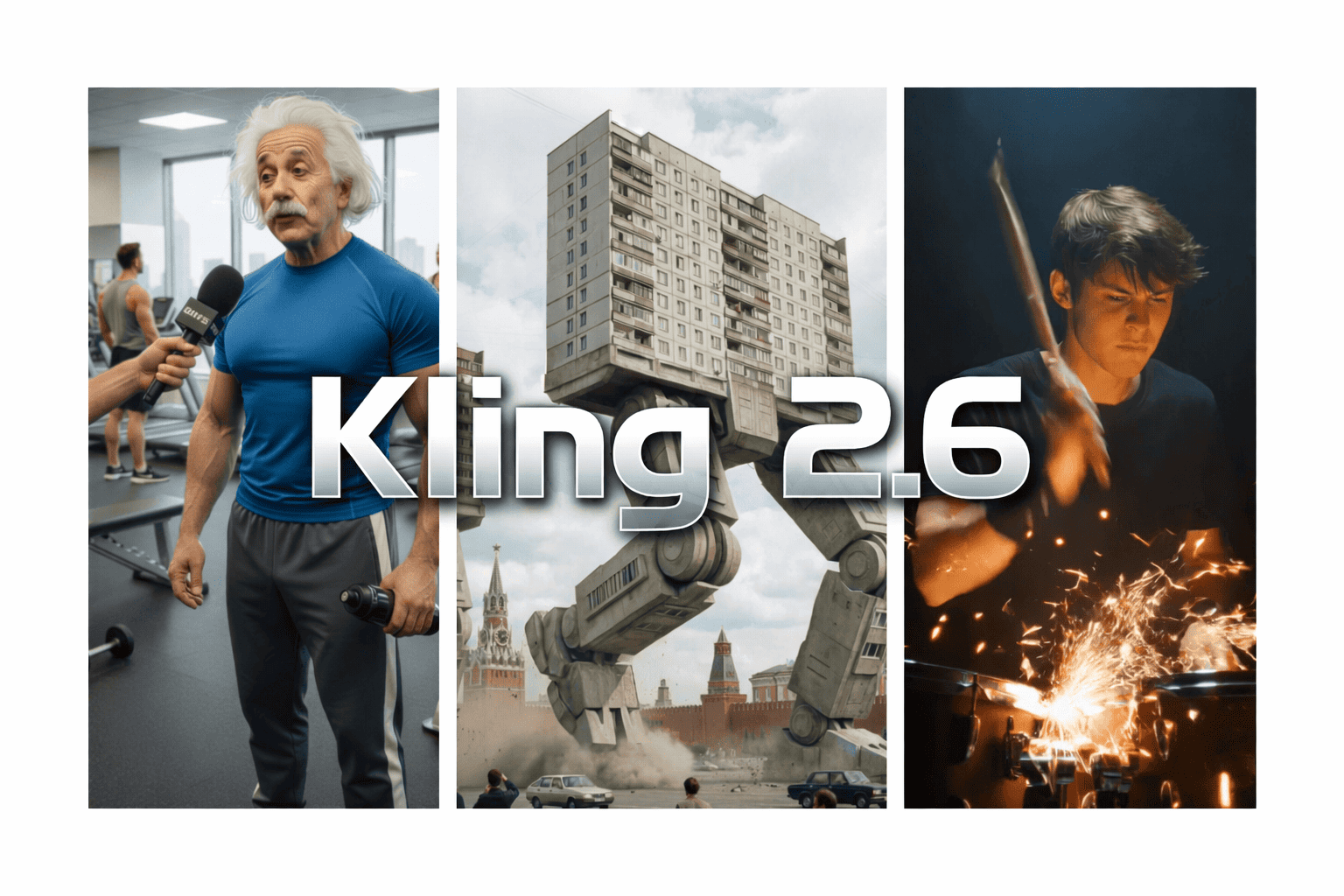
The landscape of AI video generation is moving at a breakneck speed. Just when you think you have mastered one tool, another emerges with sharper visuals, better motion coherence, and more realistic physics. Enter Kling 2.6, a model that has recently captured the attention of creators, marketers, and tech enthusiasts worldwide for its impressive ability to turn simple text prompts into cinematic reality.
If you are looking to elevate your content creation game, you need to know how to use Kling 2.6. But navigating a new AI interface can be tricky. Where do you start? How do you write the perfect prompt? And is it the only tool you need in your arsenal?
In this comprehensive guide, we will walk you through everything you need to know about Kling 2.6. From your first login to mastering advanced camera controls, we have got you covered. Plus, we will see how it stacks up against other industry heavyweights, including the versatile karavideo.ai, to help you decide which platform best fits your creative workflow.
Let’s dive in and start creating.
What is Kling 2.6?
Kling 2.6 is one of the latest iterations of generative video technology. Developed to push the boundaries of realism, it specializes in creating high-fidelity video clips from text descriptions (Text-to-Video) or static images (Image-to-Video).
Unlike earlier AI models that often struggled with "morphing"—where objects would strangely shapeshift or melt—Kling 2.6 is praised for its temporal stability. This means characters stay consistent, physics behave more predictably, and the lighting remains coherent throughout the clip.
Key Features at a Glance
- High Definition Output: Generates videos up to 1080p resolution.
- Longer Duration: Capable of generating clips that extend beyond the standard 2-4 seconds seen in older models.
- Realistic Motion: improved understanding of human and animal movement.
- Camera Control: Advanced settings to simulate pans, zooms, and tilts.
Getting Started: Your First Steps
Ready to try it out? Here is the foundational guide on how to use Kling 2.6 for the first time.
Step 1: Access the Interface
Kling 2.6 is typically accessed via a web-based dashboard. You will need to create an account. Most AI video platforms operate on a credit system, so upon signing up, you will likely receive a starter pack of credits to experiment with.
Step 2: Navigate the Dashboard
The interface is designed to be straightforward. You will usually find two main tabs:
- Text to Video: The blank canvas where you write a prompt from scratch.
- Image to Video: An upload area where you provide a starting image to animate.
Step 3: Configure Settings
Before you type a single word, check your settings sidebar.
- Aspect Ratio: Choose 16:9 for YouTube, 9:16 for TikTok/Reels, or 1:1 for Instagram feeds.
- Duration: Select how long you want the clip to be (usually 5s or 10s). Note: Longer clips consume more credits.
- Creativity vs. Relevance: Some versions of the interface allow you to toggle how strictly the AI follows your prompt versus how much creative liberty it takes.
Core Feature 1: Text to Video
This is the bread and butter of generative AI. You type, and the machine dreams. However, getting a "usable" video versus a "weird" video comes down to your prompting skill.
The Perfect Prompt Structure
To master how to use Kling 2.6, you must think like a director. A vague prompt like "a cat running" will yield generic results.
Example:
"A cinematic shot of a cyberpunk samurai walking through a neon-lit rain-slicked alleyway at night. Volumetric fog, blue and pink lighting. The camera tracks backward slowly. 4k, hyper-realistic."
Step-by-Step Execution
- Input Prompt: Type your detailed description into the text box.
- Negative Prompt: This is crucial. Tell the AI what not to do. Common negative prompts include: "blur, distortion, morphing, low quality, watermarks, bad anatomy."
- Generate: Hit the button and wait. Rendering video takes significantly longer than images—usually a few minutes.
- Review: Watch your clip. If the motion is too fast, adjust your prompt to include "slow motion." If the face looks odd, try describing the facial features more clearly.
Core Feature 2: Image to Video
This feature is where Kling 2.6 truly shines for professional workflows. Instead of relying on the AI to invent a character from scratch every time (which leads to inconsistency), you upload a perfect image and ask Kling to move it.
Why Use Image to Video?
- Brand Consistency: If you have a brand mascot or a specific product photo, you can animate it without the AI changing its appearance.
- Artistic Control: You can generate a specific artistic style in an image generator (like Midjourney or Adobe Firefly) and then bring it to Kling 2.6 solely for motion.
The Process
- Upload: Drag and drop your high-resolution image into the upload box.
- Describe the Motion: Even though you provided an image, you still need a text prompt. Describe only the movement.
- Example: " The leaves rustle in the wind, the water ripples gently, sunlight flickers."
- Motion Strength: There is usually a slider for "Motion Score" or "Amplitude."
- Low (1-3): Subtle movement. Good for cinemagraphs or talking heads.
- High (7-10): Dramatic action. Good for running, explosions, or fast camera moves. Warning: High motion scores increase the risk of distortion.
Advanced Techniques: Camera Control
One of the biggest differentiators in learning how to use Kling 2.6 is mastering camera control. Static AI videos can feel boring. Adding camera movement makes them feel cinematic.
Kling 2.6 offers specific controls or prompt commands for:
- Pan: Moving the camera horizontally (Pan Left, Pan Right).
- Tilt: Moving the camera vertically (Tilt Up, Tilt Down).
- Zoom: Changing the focal length (Zoom In, Zoom Out).
- Roll: Rotating the camera (Dutch Angle).
Pro Tip: Combine movements carefully. A "Zoom In" + "Pan Right" creates a dynamic revealing shot. However, too much movement often confuses the AI, causing the background to warp. Start with simple movements and layer them as you get comfortable.
Comparison: Kling 2.6 vs. The Market
Kling 2.6 is powerful, but is it the right tool for you? The AI video market is flooded with options. To make an informed choice, let's compare it with other leading platforms, including the comprehensive solution provided by karavideo.ai.
Kling 2.6 vs. Runway Gen-2/Gen-3
Runway has long been the industry standard.
- Kling 2.6 Pros: often produces sharper, more photorealistic textures in "human" subjects compared to older Runway models. It handles complex physics (like water flowing) exceptionally well.
- Runway Pros: Offers a massive suite of editing tools (inpainting, green screen) directly in the browser. It is a more established "editor" rather than just a "generator."
Kling 2.6 vs. Luma Dream Machine
Luma exploded onto the scene with incredible speed and quality.
- Kling 2.6 Pros: Generally offers longer clip generation in a single go and fine-grained control over camera movements.
- Luma Pros: Extremely fast generation times and a very high "understanding" of prompt logic. If you ask for something bizarre, Luma often gets the logic right.
The Game Changer: karavideo.ai
While Kling 2.6 is an excellent standalone model, relying on a single AI engine can be limiting. What if Kling struggles with a specific anime style you need? What if you need to upscale the video or add lip-syncing, which Kling doesn't natively support?
This is where karavideo.ai enters the conversation as a superior, holistic solution.
karavideo.ai isn't just another model; it is an aggregation platform designed to streamline your entire video production workflow.
1. Access to Multiple Models
When you use a standalone tool like Kling, you are locked into its strengths and weaknesses. karavideo.ai flips the script. Enjoy seamless access to the world’s best video engines—all from one dashboard with one price. You can test your prompt against multiple top-tier models to see which one delivers the best result, ensuring you are never stuck with a "bad generation."
2. Workflow Efficiency
Kling 2.6 focuses heavily on generation. karavideo.ai focuses on production.
- Describe → pick model → generate. No tool-hopping, no setup overhead.
- If you are a marketer managing social media, you don't have time to log into three different websites. You need a central hub where you can generate, animate, and refine. karavideo.ai provides that centralized command center.
3. Video-First Features
While Kling generates the raw clip, karavideo.ai helps you finish it.
- Choose from 40+ AI-powered effects to create fun, expressive, and viral-ready videos with just one click.
- Need to turn a static product image into a high-converting ad? Free your video creation—start with any text, image, or clip and apply dynamic templates and effects that are optimized for platforms like TikTok and Instagram.
4. Cost-Effectiveness
Subscribing to Kling, Runway, Midjourney, and an upscaler separately can cost hundreds of dollars a month. karavideo.ai offers a consolidated subscription that gives you access to the capabilities of these technologies at a fraction of the cost. For businesses and freelancers, this ROI is undeniable.
The Verdict:
- Use Kling 2.6 directly if you are a researcher or hobbyist who wants to deep-dive specifically into the nuances of that single model's physics engine.
- Use karavideo.ai if you are a creator, marketer, or business owner who needs a reliable, all-in-one toolkit to produce high-quality video content efficiently without technical bottlenecks.
Troubleshooting Common Kling 2.6 Issues
Even with the best prompts, AI can be unpredictable. Here is how to fix common problems when learning how to use Kling 2.6.
Issue 1: The "Melting" Effect
- Symptom: Your character's face distorts or hands merge into objects.
- Fix: Reduce the "Motion Score." High motion forces the pixels to change too rapidly, losing coherence. Also, check your resolution; standard 16:9 often yields better structural integrity than custom ratios.
Issue 2: Ignoring the Prompt
- Symptom: You asked for a "red car" and got a blue one.
- Fix: Move the most important words to the beginning of the prompt. AI pays the most attention to the first 5-10 words. Increase the "Prompt Adherence" slider if available.
Issue 3: Low Resolution / Blurry Output
- Symptom: The video looks grainy.
- Fix: Ensure you are selecting the "High Quality" mode in settings (this may cost more credits). Alternatively, generate the clip in Kling and then bring it into a platform like karavideo.ai to utilize AI upscaling tools for a crisp final product.
Ethical Content Creation
As we embrace tools like Kling 2.6, we must address the ethics of AI.
- Copyright: Kling 2.6, like many models, is trained on vast datasets. Be cautious when generating content that mimics specific copyrighted characters (e.g., Marvel superheroes) for commercial use.
- Transparency: Always label your AI-generated content. Platforms like YouTube and TikTok now require creators to disclose when realistic-looking content is synthetic.
- Safety: Avoid generating deepfakes of real people without their consent. Most platforms have strict bans on this, and it violates ethical standards.
Power User Tips for Efficiency
If you are using AI video for work, speed is money. Here is how to speed up your workflow.
- Batch Prompting: Don't write one prompt, wait 5 minutes, and write another. Prepare a document with 10 variations of your scene. Paste them in one by one to queue up multiple generations.
- Seed Consistency: If you find a generation you like but want to change one small thing (like the color of a shirt), look for the "Seed Number" in the video details. Re-using the seed number with a slightly modified prompt helps retain the original composition.
- Hybrid Workflows: Don't try to make the AI do everything in one shot.
- Generate the background in Midjourney.
- Animate the background in Kling 2.6.
- Overlay a green-screen actor or text in a video editor.
- Use karavideo.ai to apply final style filters and effects.
Conclusion: The Future is in Motion
Learning how to use Kling 2.6 opens up a world of visual storytelling that was previously impossible without a Hollywood budget. Whether you are creating music videos, social media ads, or experimental art, the barrier to entry has crumbled.
While Kling 2.6 offers stunning realism and control, remember that the tool should serve the creator, not the other way around. Don't get bogged down in the technical weeds of a single model. Platforms like karavideo.ai exist to simplify this complexity, giving you the best of all worlds—access to top-tier models like Kling, combined with the ease of use and editing power you need to finish the job.
Your Next Steps:
- Experiment: Sign up for Kling 2.6 and try the "Text to Video" feature with a simple prompt.
- Refine: Take your best result and try to recreate it using "Image to Video" for better control.
- Scale: Visit karavideo.ai to see how you can integrate these generations into a faster, more professional workflow.
The era of AI video is here. What will you create today?