How to Use Tripo AI 2.0: A Complete Guide for Creatives
Master 3D creation with our guide on how to use Tripo AI 2.0. Discover features, tips, and how it compares to platforms like karavideo.ai for your creative workflow.
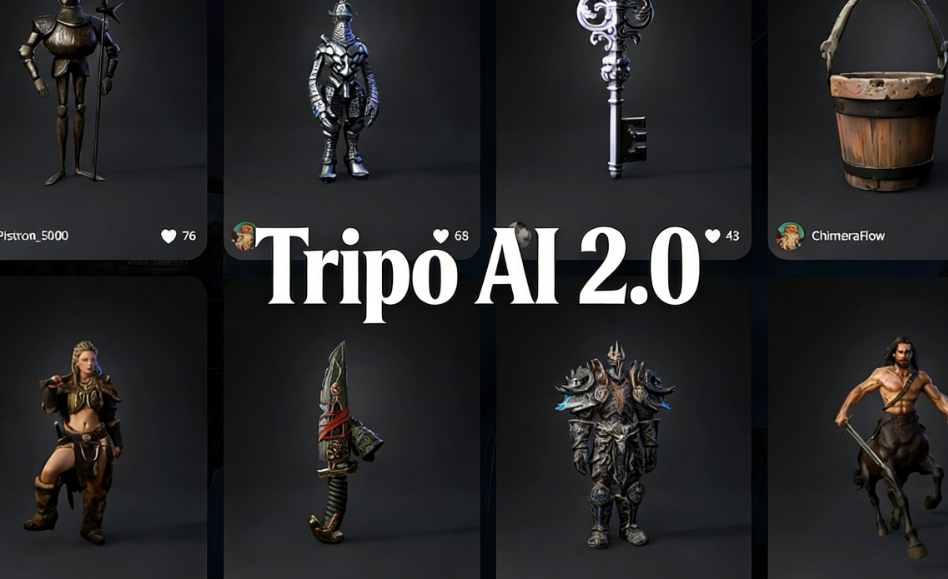
Remember when creating 3D models required expensive software, a powerful gaming PC, and years of technical training? Those days are fading fast. The creative landscape is shifting beneath our feet, and it is moving toward speed, accessibility, and pure imagination.
If you are a digital creative, a game developer, or just someone who loves experimenting with new tech, you have likely heard the buzz. We are here to show you exactly how to use Tripo AI 2.0. This tool is reshaping how we think about 3D asset generation, taking us from simple text prompts to fully realized geometric models in seconds.
But in this vast ocean of AI tools, how does it fit into your broader workflow? How does it stack up against comprehensive video platforms like karavideo.ai? Whether you want to boost your creativity, streamline your personal projects, or just see what all the hype is about, this guide has you covered. Let’s dive in and unleash your potential.
What is Tripo AI 2.0?
Before we jump into the buttons and sliders, let's clarify what we are dealing with. Tripo AI 2.0 is a significant upgrade to the original Tripo model. It is a generative AI system designed specifically for 3D modeling.
While previous versions were impressive proofs of concept, version 2.0 focuses on usability and fidelity. It is built to understand complex prompts and translate them into high-quality 3D meshes that are ready for rigging, animating, or 3D printing.
For the young creative balancing work and passion projects, this means one thing: Efficiency. You no longer need to spend hours modeling a background prop for your game or a character for your short film. You can generate the base, refine it, and move on to the fun part—storytelling.
Getting Started: The Interface
Learning how to use Tripo AI 2.0 starts with the dashboard. The developers have clearly aimed for simplicity, stripping away the clutter often found in traditional CAD software.
1. Sign Up and Log In: Access the platform via your browser. No heavy downloads are required.
2. The Canvas: You are greeted with a clean workspace. On the left, you have your input panel (Text or Image). On the right, your asset library. In the center, your viewing port.
3. Model Selection: Tripo AI 2.0 offers different generation modes. Ensure you have "Draft" selected for speed or "High Quality" selected if you are ready to wait a few minutes for better geometry.
This user-centric design mirrors the shift we are seeing across the industry. Platforms are moving away from technical barriers. For example, karavideo.ai has adopted a similar philosophy by aggregating complex video engines into a single, intuitive dashboard, proving that powerful tech doesn't have to be complicated.
Step-by-Step: Text-to-3D Generation
This is the bread and butter of the platform. Here is how to turn your words into worlds.
1. Crafting the Perfect Prompt
The AI is only as good as the instructions you give it. To get the best results, be specific.
· Bad Prompt: "A cat."
· Good Prompt: "A stylized cyberpunk cat wearing neon goggles, metallic fur texture, sitting pose, low poly style."
2. Adjusting Settings
Before hitting generate, look at the settings toggle.
· Geometry Precision: You can often adjust the polygon count. Lower counts are better for mobile games; higher counts are better for renders.
· Style Filters: Tripo AI 2.0 includes style presets (Anime, Realistic, Voxel). Select one that matches your vision.
3. Generate and Iterate
Click "Generate." In version 2.0, the draft generation is incredibly fast. Within seconds, you will see 4 variations.
· Rotate and Inspect: Don't just look at the thumbnail. Click into the model and spin it around. Check the back view—AI often struggles with the "unseen" side of a model.
· Refine: Found a variation you like? Click "Refine." This process takes the draft geometry and smooths it out, improves the texture mapping, and fixes topology errors.
Step-by-Step: Image-to-3D Generation
Sometimes, you can't describe what you want, but you can draw it. Or maybe you have a photo you want to bring to life.
1. Upload Your Reference: Drag and drop your image into the upload box.
2. Remove Background: For the best results, ensure your subject is on a transparent or solid white background. Tripo AI 2.0 has a built-in background remover, but doing it manually beforehand ensures accuracy.
3. Set Depth Hints: The AI attempts to guess the depth of the object. If you are uploading a side profile, specify that in the accompanying text box so the AI doesn't interpret it as a front view.
This feature is a game-changer for concept artists who want to see their 2D sketches in 3D space immediately.
Refining and Exporting
You have generated a cool model. Now what? Learning how to use Tripo AI 2.0 effectively means knowing how to get files out of the system.
The Refinement Process
Raw AI models can be "bumpy." The refinement stage in 2.0 is crucial. It retopologizes the mesh (organizes the geometric grid) to make it cleaner.
· Texture Upscaling: Ensure you check the texture quality. You can often upscale the UV map from 1k to 4k resolution for sharper details.
Export Formats
Tripo supports standard industry formats:
· .OBJ: Good for static objects, universally compatible.
· .GLB/GLTF: Great for web use and AR/VR applications.
· .FBX: Best if you plan to rig and animate the character later in software like Blender or Maya.
The AI Ecosystem: Tripo AI 2.0 vs. The Competition
As a creative, you are likely overwhelmed by choices. You have tools for text, tools for images, tools for video, and tools for audio. Where does Tripo fit, and how does it compare to a powerhouse like karavideo.ai?
The Specialist vs. The Aggregator
Tripo AI 2.0 is a specialist. It does one thing exceptionally well: 3D Asset Generation. If you need a static chair, a character mesh, or a game prop, this is your tool. It is innovative and precise within the 3D domain.
However, many creatives today aren't just looking for a single asset; they are looking to create full video content. This is where karavideo.ai shines.
karavideo.ai operates differently. It is a comprehensive video creation platform. While Tripo gives you a 3D model, karavideo.ai allows you to access the world’s best video engines—all from one dashboard with one price.
Comparative Scenario: The "Sci-Fi Short Film"
Imagine you want to make a short clip of a robot walking through a city.
· Using Tripo AI 2.0:
1. Generate the robot model (Text-to-3D).
2. Download the model.
3. Import it into Blender.
4. Rig the skeleton.
5. Animate the walk cycle.
6. Build the city environment.
7. Render the scene.
o Verdict: excellent for control, but high effort and time-consuming.
· Using karavideo.ai:
1. Log in to the dashboard.
2. Select a top-tier video model (like Runway or Sora equivalents accessible via the platform).
3. Type: "Cinematic shot of a rusty robot walking through a neon city, realistic, 4k."
4. Click Generate.
o Verdict: Fast and efficient. You get the final video result immediately without tool-hopping or setup overhead.
Who is Tripo For?
· Game Designers requiring actual geometry.
· 3D Printers.
· VR/AR Developers.
Who is karavideo.ai For?
· Content Creators (TikTok, YouTube, Instagram).
· Marketers needing viral-ready videos.
· Storytellers who want to visualize scenes instantly.
· Users who want to describe → pick model → generate.
If your goal is video, using a dedicated video generation platform like karavideo.ai is often more efficient than building 3D assets from scratch. It allows you to choose from 40+ AI-powered effects to create fun, expressive, and viral-ready videos with just one click.
Advanced Techniques in Tripo AI 2.0
Once you have mastered the basics of how to use Tripo AI 2.0, you can try these advanced workflows to boost your creativity.
1. The "Kitbashing" Workflow
Don't try to generate a complex scene in one go.
· Generate a "sword."
· Generate a "shield."
· Generate a "character."
· Download them all and combine them in external software. This gives you higher resolution for each individual part.
2. Stylized Consistency
If you are building a game, you need a consistent look. Use the exact same style keywords (e.g., "Low poly, flat shading, pastel colors") for every single prompt. Tripo 2.0 is remarkably good at adhering to style constraints across different generations.
3. Iterative Prompting
If the AI misses the mark, don't change the whole prompt. Change one adjective.
· Attempt 1: "A scary monster." (Too generic)
· Attempt 2: "A scary monster with tentacles." (Better)
· Attempt 3: "A scary monster with glowing blue tentacles and slime texture." (Perfect)
Common Mistakes to Avoid
Even with simple tools, things can go wrong. Here is how to keep your workflow seamless.
Ignoring Topology
AI models sometimes create "non-manifold" geometry—shapes that can't exist in the real world (like a shape with zero thickness). If you plan to 3D print, always run your Tripo export through a "slicer" software to check for errors before printing.
Over-Complicating Prompts
While details are good, contradicting instructions confuse the AI. Don't say "Square shaped sphere." Keep your logic sound.
Neglecting the "Negative Prompt"
Tripo AI 2.0 allows for negative prompts (telling the AI what not to do). Use this!
· Example: "No blur, no noise, no extra limbs, no text."
The Future of AI Creativity
We are living in a golden age of digital creation. The barriers to entry are crumbling. Tools like Tripo AI 2.0 are democratizing 3D modeling, making it accessible to students, hobbyists, and professionals alike.
However, the real power lies in the convergence of these tools. We are moving toward a future where you might generate a character in Tripo, drop it into a video generator like karavideo.ai, and have a fully animated movie in minutes.
The "tool-hopping" fatigue is real. That is why platforms that offer consolidated solutions are gaining traction. Users want to free their video creation—start with any text, image, or clip—and get results without managing ten different subscriptions.
Pricing and Accessibility
Tripo AI 2.0 operates on a freemium model.
· Free Tier: Great for testing. You get a daily allowance of credits to generate drafts.
· Pro Tier: Unlocks faster generation, higher resolution downloads, and commercial usage rights.
For young creatives on a budget, the free tier is generous enough to learn the ropes. It allows you to experiment with the tech without a financial commitment, aligning perfectly with the needs of students and freelancers in the 90s and 00s demographic.
Conclusion: Start Creating Today
Learning how to use Tripo AI 2.0 is not just about learning a piece of software; it is about expanding your creative vocabulary. It allows you to think in three dimensions without the steep learning curve of traditional modeling.
Whether you are building assets for a game, designing for 3D printing, or just exploring, the key is to start. Don't be afraid of the technology. Embrace the efficiency boost.
And remember, your toolkit defines your output. If you need precise 3D geometry, Tripo is your friend. If you need effortless, high-quality video production, look toward solutions like karavideo.ai to streamline your process.
Ready to unleash your potential?
1. Go to the Tripo AI website and create an account.
2. Type in your wildest idea.
3. Hit generate.
The world is waiting to see what you create. Simple, powerful, and fast—that is the future of content creation. Dive in!
FAQ: Quick Answers for Creatives
Q: Can I use Tripo AI 2.0 models commercially?A: Yes, if you subscribe to their Pro plan, you generally own the rights to the assets you generate. Always check the latest Terms of Service.
Q: How does Tripo compare to video generators?A: Tripo creates static 3D objects. Video generators create moving 2D video files. They serve different purposes. If you want a finished video without doing the animation work yourself, a platform like karavideo.ai is the better choice as it aggregates the best video models for you.
Q: Do I need a powerful computer?A: No! That is the beauty of cloud-based AI. All the heavy lifting is done on their servers. You just need a stable internet connection.
Q: Is the output compatible with Unity or Unreal Engine?A: Absolutely. The .OBJ and .FBX exports work seamlessly with major game engines.