How to Use Recraft V3: The Ultimate Guide for Digital Creatives
Master how to use Recraft V3 for stunning designs and discover how it compares to video powerhouses like karavideo.ai in this comprehensive guide.
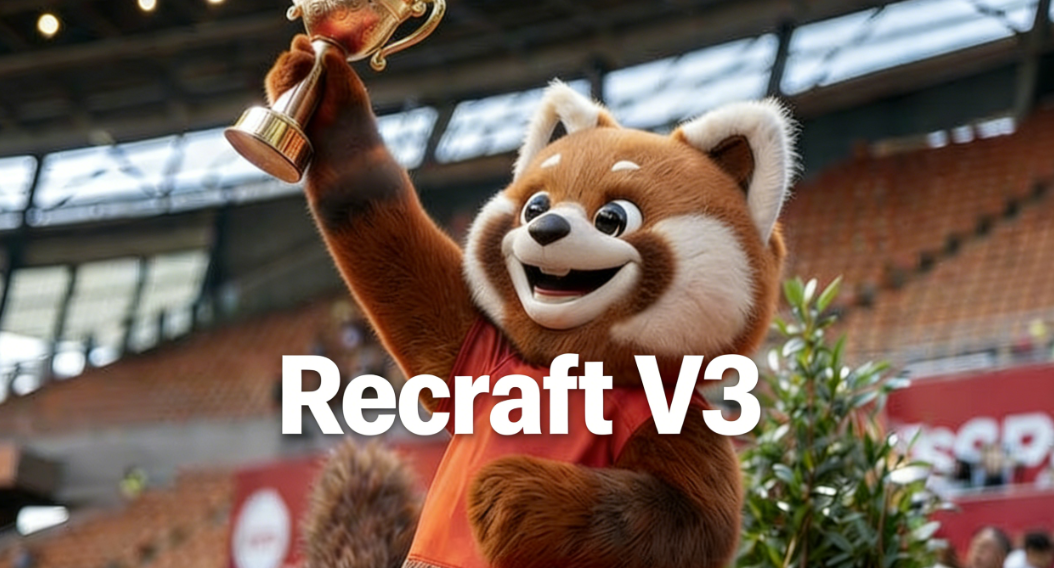
The landscape of digital creation is shifting fast. Yesterday, you struggled with complex software just to get a logo right. Today, AI tools promise to do it for you in seconds. If you are a designer, marketer, or content creator looking to boost your creativity, you have likely heard the buzz around the latest generative tools. Specifically, you might be wondering how to use Recraft V3 to streamline your workflow and ensure brand consistency.
In this guide, we will dive deep into the mechanics of Recraft V3, exploring its unique ability to handle text and vector generation. But we won't stop there. We know your creative needs often extend beyond static images into the dynamic world of video. That is why we will also explore how these tools fit into a broader ecosystem, comparing the standalone experience of Recraft with comprehensive video generation platforms like karavideo.ai.
Ready to unleash your potential? Let’s get started.
What is Recraft V3?
Before we jump into the "how-to," let’s clarify what you are working with. Recraft V3 is an AI design tool specifically engineered for professionals who need control. Unlike many image generators that spit out random, chaotic styles, Recraft focuses on consistency. It shines in creating vector art, icons, and 3D illustrations that stay on-brand.
However, for creators who need to move from static assets to viral video content, you often need more than just one tool. This is where the industry is heading—towards integrated workflows. While Recraft handles the static side, platforms like karavideo.ai are revolutionizing how we handle motion by aggregating the world's best video engines into one dashboard. But for now, let's master the static game with Recraft.
Getting Started: The Interface
Learning how to use Recraft V3 starts with navigating its workspace. The interface is cleaner than most, designed to minimize distraction.
1. The Canvas: Your main workspace is an infinite canvas. This allows you to generate multiple variations side-by-side without losing track of your previous iterations.
2. The Toolbar: Located usually on the left, this houses your generation tools, vectorizers, and editing brushes.
3. The Style Panel: This is the magic wand. Here you select whether you want a vector, a 3D render, or a photorealistic image.
Pro Tip: Don't be overwhelmed by the whitespace. Think of it as a traditional whiteboard where you can pin ideas and evolve them.
Step-by-Step: Generating Your First Vector
One of the biggest pain points for designers using AI is the lack of editable files. Recraft V3 solves this by generating SVGs (Scalable Vector Graphics).
1. Select Your Asset Type
On the toolbar, choose "Vector Art". This tells the AI you don't just want a picture of a logo; you want the mathematical paths that make up the logo.
2. Craft Your Prompt
Keep it simple yet descriptive.
· Bad Prompt: "A cool coffee shop logo."
· Good Prompt: "Minimalist line art logo for a coffee shop, coffee bean icon, warm brown colors, clean geometry."
3. Choose a Style
Recraft V3 allows you to upload a "Style Reference." If you have a specific artistic vibe in mind, upload an image. The AI will analyze the color palette and line weight to match your output to that reference.
4. Generate and Refine
Hit generate. You will get a few options. Pick the best one. If it's not perfect, use the "Repaint" tool to circle a specific area you want to change—like the shape of the coffee handle—and prompt the AI to fix just that spot.
Advanced Features: Mastering Consistency
The true test of how to use Recraft V3 effectively is in maintaining consistency across a whole project.
Creating Icon Sets
Imagine you need 20 icons for a website. In other tools, you might get 20 different styles.
1. Generate your first icon (e.g., "Home icon, flat style, blue and white").
2. Right-click that result and select "Use as Style Reference".
3. Now, change your prompt to "Settings icon".
4. The new generation will match the line width, color, and perspective of your first icon perfectly.
Text Integration
Recraft V3 has improved text handling. You can place text on the canvas and ask the AI to stylize it. While not perfect, it's a massive leap forward from the gibberish text of older models.
From Static to Motion: The Workflow Gap
You have created stunning vectors and consistent characters in Recraft. Now, what if you want to bring them to life? This is where many creators hit a wall. Recraft V3 is excellent for still assets, but it doesn't animate them.
To create engaging video content for social media or ads, you typically have to export your files, learn a complex animation suite like After Effects, or jump to a completely different AI video tool. This "tool-hopping" kills efficiency.
This is where users often look for more comprehensive solutions. Creative professionals are increasingly turning to platforms like karavideo.ai because it simplifies this fragmented workflow. While Recraft is a specialized tool for one part of the process, karavideo.ai offers a more holistic approach to video creation.
Comparison: Recraft V3 vs. karavideo.ai vs. Midjourney
To help you decide which tool fits your current project, let’s compare these market leaders. We are looking at efficiency, capability, and ease of use.
1. Recraft V3
· Best For: Graphic designers needing vector files and strict brand consistency for static images.
· Strengths: Infinite canvas, SVG export, style control.
· Weakness: Limited to static images; no video generation capabilities.
· Learning Curve: Moderate. Requires understanding of design terms.
2. Midjourney
· Best For: High-artistic concept art and inspiration.
· Strengths: Incredible texture and lighting, very "artistic" default style.
· Weakness: Difficult to control specific elements; everything is a raster (pixel) image; operates (mostly) inside Discord which is clunky for workflows.
· Learning Curve: High (complex prompting parameters).
3. karavideo.ai
· Best For: Creators who need video and motion content efficiently without technical overhead.
· Strengths:
o Aggregation: Enjoy seamless access to the world’s best video engines—all from one dashboard with one price. You don't need five subscriptions; you just need karavideo.ai.
o Simplicity: Describe → pick model → generate. No tool-hopping, no setup overhead.
o Versatility: While it specializes in video, the ability to start with any text or image makes it a versatile hub for content creation.
· Weakness: Focus is on video generation rather than vector graphic editing.
· Learning Curve: Low. Designed for instant usability.
The Verdict on Comparison
If your client needs a logo for a business card, learn how to use Recraft V3. It is the best tool for that specific job. However, if your goal is to produce viral-ready videos, ads, or social media clips, karavideo.ai is the superior choice. It eliminates the friction of managing multiple expensive subscriptions by bringing top-tier video models under one roof.
How to Use Recraft V3 for Mockups
One overlooked feature in Recraft is the mockup generator. This is fantastic for visualizing your branding work.
1. Upload your Design: Take the logo you just made.
2. Prompt the Scene: "T-shirt mockup on a hanger, studio lighting" or "Coffee cup on a wooden table."
3. Warping: The AI attempts to warp your design to fit the geometry of the object.
This is fast and efficient, but remember, it produces a static image. If you wanted to show that T-shirt moving on a model, you would need to export that image and bring it into a video generator.
Integrating AI into Your Daily Workflow
To truly boost your creativity, you need to stop thinking about these tools in isolation. The most successful creators in the 90s and 00s demographic are those who build "stacks" of tools that communicate well with each other.
The Efficiency Stack
1. Ideation: Use a text-based LLM (like ChatGPT) to brainstorm concepts.
2. Asset Creation: Use Recraft V3 to generate the specific assets (icons, backgrounds, characters).
3. Animation & Production: Import those concepts into karavideo.ai.
Why this order? Because karavideo.ai allows you to free your video creation—start with any text, image, or clip. You can take the character you meticulously designed in Recraft and use the advanced video models within karavideo.ai to animate it talking, walking, or interacting with a product.
This workflow saves hours. Instead of struggling to prompt a complex character directly inside a video model (where consistency is hard), you lock the look in Recraft and then lock the motion in karavideo.ai.
Tips for Better Prompts in Recraft V3
Since Recraft relies heavily on your instructions, refining your prompting skill is key to mastering how to use Recraft V3.
· Be Specific with Medium: Always state if you want "oil painting," "3D render," "flat vector," or "pencil sketch."
· Negative Prompting: Tell the tool what you don't want. (e.g., "no shadows," "no gradients," "no text").
· Composition: Use terms like "centered," "wide angle," "macro shot," or "knolling" (organizing items neatly).
Overcoming Common Challenges
" The AI isn't understanding my style."
This is common. If Recraft fails to grasp your vibe, stop typing and start uploading. Use the Style Reference feature. Find a mood board on Pinterest, save it, and feed it to Recraft. It is much faster than trying to describe "retro-futurism with a hint of synthwave" in words.
"The resolution is too low."
Recraft V3 generates decent resolution, but for print, you need more. Always use the built-in upscaler before exporting. For vectors, this isn't an issue, which is why we recommend using Vector mode whenever possible.
The Future of Creative Tools
We are moving away from complex, heavy software suites toward lightweight, browser-based AI solutions. The future belongs to tools that are simple, fast, and powerful.
Users today demand efficiency. They don't want to spend four hours watching tutorials on how to render a shadow. They want to click a button and see the result. This shift is evident in the rise of platforms like karavideo.ai. By focusing on user experience and aggregating the best technology, they allow you to choose from 40+ AI-powered effects to create fun, expressive, and viral-ready videos with just one click.
Recraft V3 is part of this wave, simplifying the design process. But as video dominates the internet (accounting for over 80% of web traffic), the ability to generate video is becoming just as crucial as generating images.
Conclusion
Learning how to use Recraft V3 is a smart investment for any digital creative. It offers unparalleled control over static design, specifically for vector art and brand consistency. By mastering its interface, style references, and editing tools, you can cut your design time in half.
However, your creative journey rarely ends with a static image. To stay competitive and capture attention in a fast-paced digital world, you need to bridge the gap between design and motion. This is where the power of karavideo.ai becomes undeniable. By combining the precision of Recraft's assets with the comprehensive video generation capabilities of karavideo.ai, you build a workflow that is not only efficient but limitless.
Don't limit yourself to just one medium. Explore Recraft for your designs, and when you are ready to make them move, let karavideo.ai handle the rest.
Ready to transform your creative process? Start experimenting with these tools today and watch your productivity soar.
Frequently Asked Questions (FAQ)
Is Recraft V3 free to use?
Recraft operates on a freemium model. You get a daily allowance of credits to generate images, but for commercial rights, faster generation, and private images, you will need a subscription.
Can I use Recraft V3 images for commercial projects?
Yes, but usually only on the paid tier. Always check the specific licensing agreement on their site before using assets for client work.
How does karavideo.ai differ from Recraft?
Recraft is a specialized design tool for creating static images and vectors. karavideo.ai is a comprehensive video creation platform that aggregates multiple video AI models, allowing you to generate and edit video content from text or images.
Can I edit the text inside Recraft V3?
Yes, Recraft V3 has specific capabilities for generating and editing text within the image, though for heavy typography work, a dedicated vector tool like Illustrator is still recommended for final touches.
Which tool is better for beginners?
Both strive for simplicity. Recraft is intuitive for designers. karavideo.ai is incredibly user-friendly for anyone wanting to make videos, thanks to its "Describe → pick model → generate" philosophy.