How to Use Ray3 Modify: Your Guide to AI-Powered Video Editing
Ray3 Modify is designed with a core philosophy: keeping real human performance at the heart of your video while empowering your creativity with AI
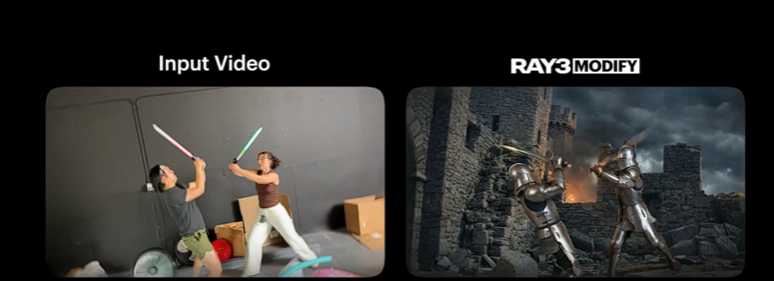
Have you ever finished shooting a video and wished you could change just one thing without a complete reshoot? Maybe you want to alter the background, change an outfit, or add a dynamic effect to make it pop. Historically, these changes required complex software, extensive time, and a hefty budget. Now, there’s a revolutionary way to transform your video content. Welcome to the world of Ray3 Modify, the groundbreaking AI video editing model from karavideo.ai.
Ray3 Modify is designed with a core philosophy: keeping real human performance at the heart of your video while empowering your creativity with AI. This powerful tool allows you to make high-fidelity modifications to existing videos, opening up a universe of creative possibilities. You no longer need to start from scratch. Instead, you can refine, enhance, and completely reimagine your footage with just a few clicks.
This comprehensive guide will walk you through everything you need to know about how to use Ray3 Modify. We will explore its incredible features, the benefits it brings to your workflow, and provide a step-by-step tutorial to get you started. Get ready to unlock a new level of video creation.
What is Ray3 Modify?
Ray3 Modify is an advanced AI video editing model available exclusively on the karavideo.ai platform. It stands apart from other AI tools by focusing on modifying existing video clips rather than generating them from text or images alone. Its unique strength lies in its ability to understand the content of your video—the people, the objects, and the environment—and apply targeted changes with remarkable accuracy and realism.
Think of it as a creative partner that understands your vision. Want to change a person's shirt from blue to red? Done. Need to transport your subject from their living room to a bustling cityscape? Easy. Ray3 Modify processes your instructions and intelligently applies them to every frame of your video, ensuring a seamless and professional-looking result. This "human-centric" approach ensures that the authenticity of the original performance is preserved, while AI adds a layer of creative magic on top.
Key Features That Redefine Video Editing
Ray3 Modify is packed with features designed to streamline your creative process and expand your artistic horizons. It’s more than just an editor; it’s an all-in-one creative suite for modern video producers.
1. High-Fidelity Object and Attribute Modification
This is the core of Ray3 Modify's power. The model can identify specific objects, people, and even clothing within your video and allow you to change their attributes.
· Change Colors: Instantly alter the color of clothing, accessories, or background elements. This is perfect for brand alignment or creating a specific mood.
· Swap Styles: Modify the style of an outfit. Turn a casual t-shirt into a formal jacket or experiment with different patterns and textures.
· Modify Objects: Change or replace objects in the scene. Add a hat to your subject, swap a coffee mug for a water bottle, or introduce new elements that weren't in the original shot.
2. Seamless Background Replacement and Enhancement
Tired of your boring background? Ray3 Modify lets you transport your subjects anywhere you can imagine.
· Static Backgrounds: Place your subject in front of a serene beach, a professional office setting, or a fantasy landscape.
· Dynamic Backgrounds: Go a step further and add a moving background, like a time-lapse of city traffic or gently falling snow, to create a more immersive experience.
· Background Effects: Apply stylistic effects like blur (bokeh) to your background to make your subject stand out, or desaturate it to create a dramatic contrast.
3. A Vast Library of AI-Powered Effects
With over 40 AI effects, you can add a touch of magic to your videos with a single click. These effects go beyond simple filters.
· Stylistic Overlays: Transform your entire video into a comic book, a watercolor painting, or a vintage film.
· Dynamic Animations: Add animated elements like sparkles, light trails, or abstract energy flows that interact with the subjects in your video.
· Facial and Body Effects: Apply fun and expressive effects, like glowing eyes or animated tattoos, that track perfectly with your subject's movements.
4. Intuitive Prompt-Based Editing
You don't need to be a technical wizard to use Ray3 Modify. The editing process is as simple as describing what you want to see.
· Natural Language Commands: Simply type your request, such as "change her dress to green" or "add a futuristic city background." The AI interprets your text and applies the changes.
· Precise Control: Use masking tools to select the specific area you want to modify. This ensures that the AI only affects the intended part of your video, giving you complete creative control.
5. Unified Workflow on karavideo.ai
Ray3 Modify is fully integrated into the karavideo.ai ecosystem. This means you have access to a complete suite of video creation tools in one place.
· All-in-One Platform: No more jumping between different software for shooting, editing, and adding effects. From initial clip to final export, everything happens on one dashboard.
· Start with Any Media: You can begin your project with a video clip, a text prompt, or an image. karavideo.ai provides the flexibility to bring your ideas to life, no matter their origin.
The Benefits: Why You Should Use Ray3 Modify
Integrating Ray3 Modify into your workflow offers transformative benefits for content creators, marketers, and businesses of all sizes. It’s not just about making cool videos; it’s about creating them more efficiently, affordably, and creatively.
1. Drastically Reduce Production Costs and Time
Reshoots are one of the biggest drains on time and money in video production. Did a product's packaging change after the commercial was shot? Was the lighting not quite right? In the past, these issues required a full day of shooting, re-hiring talent, and securing the location again. With Ray3 Modify, you can fix these problems in minutes. By digitally altering the existing footage, you save thousands of dollars and days of work.
2. Unleash Unprecedented Creative Freedom
Your imagination is no longer limited by your budget or logistical constraints. You can shoot a simple video in your studio and then use Ray3 Modify to place your subject on a mountain top, on another planet, or in a historical setting. Experiment with aesthetics, styles, and effects that would be impossible or impractical to capture in-camera. This freedom empowers you to tell more compelling and visually stunning stories.
3. Streamline Your Content Creation Workflow
The simplicity of Ray3 Modify makes video editing more accessible than ever. The "describe → pick model → generate" process removes the steep learning curve associated with traditional video editing software. This streamlined workflow means you can produce more high-quality content in less time. Marketers can quickly create variations of an ad for A/B testing, and social media creators can keep up with trends by rapidly producing fresh, engaging videos.
4. Enhance and Repurpose Existing Content
Don't let your old video clips gather digital dust. Ray3 Modify gives you the power to breathe new life into your existing content library. Update old marketing videos with new branding, change outfits to match a seasonal promotion, or add modern effects to make a clip feel fresh again. This allows you to maximize the return on your initial investment and maintain a consistent stream of content without constantly needing new footage.
5. Create Viral-Ready Videos with Ease
In the world of social media, grabbing attention is everything. Ray3 Modify's library of expressive, one-click effects is perfect for creating short-form videos that are fun, engaging, and ready to go viral on platforms like TikTok, Instagram Reels, and YouTube Shorts. The unique visual styles and dynamic animations will make your content stand out in a crowded feed.
How to Use Ray3 Modify: A Step-by-Step Guide for Beginners
Ready to start creating? The process is designed to be intuitive and user-friendly. Follow these steps to make your first AI-powered video edit.
Step 1: Sign Up and Access the karavideo.ai Platform
Your journey begins at karavideo.ai. If you don't already have an account, signing up is quick and easy. Once you're logged in, you'll land on the main dashboard. This is your central hub for all video creation projects. Familiarize yourself with the layout, where you can upload media, browse AI models, and manage your work.
Step 2: Upload Your Video Clip
The next step is to get your source material into the platform.
1. Navigate to your project library or media gallery.
2. Click the "Upload" button.
3. Select the video file from your computer that you want to modify.
For best results, use a high-quality video with clear lighting and a distinct subject. The better the source video, the more impressive the final modification will be. The platform supports common video formats like MP4 and MOV.
Step 3: Select the Ray3 Modify Model
Once your video is uploaded and selected, it's time to choose your AI tool.
1. From the editing interface, look for the list of available AI models or tools.
2. Select Ray3 Modify from the options. This will activate the model's specialized interface, ready for your instructions.
Step 4: Describe Your Desired Modification (The Magic of Prompts)
This is where your creativity comes into play. You will use a combination of text prompts and masking to tell the AI what to change. Let’s break it down into two common scenarios.
Scenario A: Changing an Object or Clothing
Imagine you want to change the color of a person's shirt.
1. Write the Prompt: In the text input box, type a clear and simple command. For example: "change the shirt to a bright yellow color."
2. Use the Masking Tool: To ensure precision, you'll need to tell the AI exactly which part of the video is the "shirt." Select the masking tool (it often looks like a brush or a lasso).
3. Paint the Mask: Carefully paint over the shirt in the video preview. You don't need to be perfect frame-by-frame; the AI is smart enough to track the masked object throughout the clip. A solid initial selection is key.
4. Refine if Needed: You can adjust the brush size and use an eraser tool to refine your mask for a clean selection.
Scenario B: Replacing the Background
Now, let's say you want to replace the background of your video.
1. Write the Prompt: Describe the new background you envision. Be as descriptive as you like! For example: "a tranquil Japanese garden with a koi pond" or "a neon-lit cyberpunk city street at night."
2. Mask the Foreground: Instead of masking the background, you'll mask the subject you want to keep. Use the masking tool to carefully paint over the person or main object in your video. This tells the AI to leave this part untouched and replace everything else.
3. Use Auto-Masking (if available): Some tools offer an "auto-mask" feature for people or salient objects. This can save you a lot of time by creating an initial selection for you, which you can then refine.
Step 5: Configure Generation Settings (Optional)
Before you generate the video, you may have a few advanced options to fine-tune the output. These can include:
· Adherence Level: A slider that controls how strictly the AI follows your prompt. A higher level means a more literal interpretation, while a lower level gives the AI more creative freedom.
· Seed Number: A number that determines the random element of the generation. If you like a result but want to try small variations, you can use the same seed number. If you want a completely new result, change the seed.
· Style Strength: When applying a stylistic effect, this setting controls its intensity.
For beginners, the default settings are usually a great starting point. You can experiment with these as you become more comfortable.
Step 6: Generate and Preview Your Video
Once you're happy with your prompt and mask, hit the "Generate" button. The AI will now process your request. This may take a few moments, depending on the length of your video and the complexity of the modification.
When it's done, a preview of your new video will appear. Watch it carefully to see how the AI executed your vision. Check for any artifacts or inconsistencies. Does the new color look natural? Does the background blend seamlessly with the foreground?
Step 7: Iterate and Refine
Great creation is often an iterative process. If the first result isn't perfect, don't worry! This is a key part of how to use Ray3 Modify effectively. You have several options:
· Refine Your Prompt: Try rephrasing your text command. Be more specific or use different descriptive words. For instance, instead of "big city," try "New York City skyline at sunset."
· Adjust Your Mask: Go back and improve your mask. A cleaner selection around your subject will almost always lead to a better result, especially for background replacements.
· Generate Again: Simply hitting "Generate" again (sometimes with a new seed) can produce a different and potentially better result.
Continue this process until you have a video that you love.
Step 8: Export and Share Your Creation
Once you are satisfied with your modified video, it's time to share it with the world.
1. Click the "Export" or "Download" button.
2. Choose your desired resolution and format (e.g., 1080p, MP4).
3. Download the file to your computer.
Your incredible AI-enhanced video is now ready to be uploaded to social media, embedded on your website, or used in your next marketing campaign!
Tips and Best Practices for Mastering Ray3 Modify
To get the most out of this powerful tool, keep these tips in mind:
· Start with High-Quality Footage: The AI works best with clear, well-lit video. Blurry, shaky, or poorly lit clips can be more challenging for the AI to interpret accurately.
· Be Specific with Your Prompts: The more detailed your prompt, the closer the result will be to your vision. Instead of "make it look cool," try "add a cinematic glitch effect with red and blue tones."
· Master the Masking Tool: A precise mask is your best friend. Take the time to create a clean outline of your subject. Zoom in to catch small details around hair and edges.
· Think in Layers: You can apply multiple modifications sequentially. First, change the background. Then, in a separate step, export that video and re-upload it to change the subject's clothing. This layered approach gives you maximum control.
· Experiment and Have Fun: Don't be afraid to try wild ideas! The best way to learn is by experimenting. Combine different effects, test unusual prompts, and see what the AI can do. You might discover a unique visual style that becomes your signature.
· Keep an Eye on Motion: When modifying objects on a moving subject, pay attention to how the modification looks across the entire range of motion. Ray3 Modify's tracking is excellent, but complex movements might require a more careful mask.
Final Thoughts: The Future of Video Creation Is Here
Ray3 Modify from karavideo.ai is more than just a feature; it's a paradigm shift in video production. By placing the power of advanced AI into an intuitive, prompt-based interface, it democratizes a level of creative control that was once reserved for elite visual effects artists. The ability to modify, enhance, and repurpose video content with such ease and fidelity is a game-changer for creators everywhere.
Now that you know how to use Ray3 Modify, the only limit is your imagination. Go ahead, dive into the karavideo.ai platform, and start transforming your videos today. Your audience is waiting to be amazed.